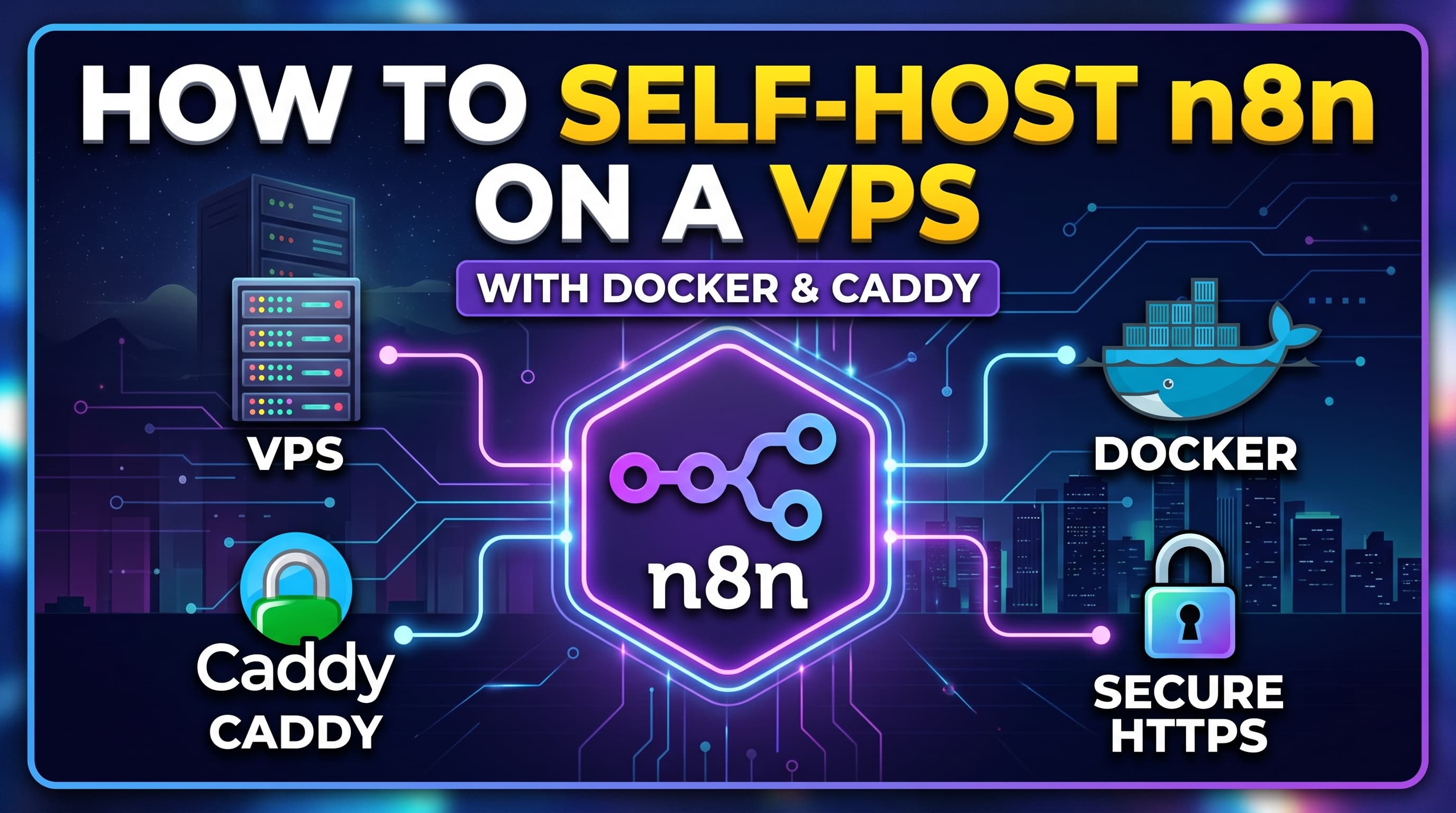
How to Self-Host n8n on a VPS with Docker & Caddy (HTTPS)
In this guide, you'll learn how to deploy n8n on your own VPS using Docker Compose and Caddy as a reverse proxy with automatic HTTPS certificates. By the end of this tutorial, you'll have a production-ready n8n instance running securely on your own domain.
Snehasis Ghosh
🚀 How to Self-Host n8n on a VPS with Docker & Caddy (HTTPS)
If you want full control over your automations without paying monthly subscription fees, self-hosting n8n is one of the best options.
In this guide, you'll learn how to deploy n8n on your own VPS using Docker Compose and Caddy as a reverse proxy with automatic HTTPS certificates.
By the end of this tutorial, you'll have a production-ready n8n instance running securely on your own domain.
Prerequisites
Before starting, make sure you have:
- A VPS (Ubuntu 22.04 or newer recommended)
- A registered domain name
- Root SSH access
- Basic Linux knowledge
Architecture
Internet
     │
     ▼
 Cloudflare (Optional)
     │
     ▼
   Caddy (HTTPS)
     │
     ▼
     n8n
     │
 Docker Volume
Step 1 — Create a VPS
You can use any cloud provider as you wish.
A VPS with the following specifications is sufficient for most personal projects:
- 1 vCPU
- 2 GB RAM
- 20 GB SSD
- Ubuntu 22.04 LTS
Step 2 — Configure DNS
Create an A Record for your subdomain.
Example:
| Type | Name | Value |
|---|---|---|
| A | n8n | YOUR_VPS_IP |
Your domain should now resolve to:
n8n.example.com
DNS propagation may take a few minutes.
Step 3 — Connect to Your VPS
SSH into your server.
ssh root@YOUR_VPS_IP
Update the system packages.
apt update && apt upgrade -y
Step 4 — Install Docker
The fastest method is Docker's official installation script.
curl -sSL https://get.docker.com | sh
Verify the installation.
docker --version
docker compose version
Example output:
Docker version 28.x.x
Docker Compose version v2.x.x
If both commands return version numbers, Docker is installed correctly.
Step 5 — Create the Project Directory
Create a directory for your deployment.
mkdir -p ~/n8n
cd ~/n8n
Step 6 — Create docker-compose.yml
Create the compose file.
nano docker-compose.yml
Paste the following configuration.
version: '3.8'

services:
  n8n:
    image: docker.n8n.io/n8nio/n8n
    container_name: n8n
    restart: always

    ports:
      - "5678:5678"

    environment:
      - N8N_HOST=n8n.yourdomain.com
      - N8N_PORT=5678
      - N8N_PROTOCOL=https
      - NODE_ENV=production
      - WEBHOOK_URL=https://n8n.yourdomain.com

    volumes:
      - n8n_data:/home/node/.n8n

  caddy:
    image: caddy:latest
    container_name: caddy
    restart: unless-stopped

    ports:
      - "80:80"
      - "443:443"

    volumes:
      - ./Caddyfile:/etc/caddy/Caddyfile:ro
      - caddy_data:/data
      - caddy_config:/config

volumes:
  n8n_data:
  caddy_data:
  caddy_config:
Save the file.
Step 7 — Create the Caddy Configuration
Create a Caddyfile.
nano Caddyfile
Paste:
n8n.yourdomain.com {

    reverse_proxy n8n:5678

    encode gzip

    header {
        Strict-Transport-Security "max-age=31536000;"
        X-Content-Type-Options nosniff
        X-Frame-Options SAMEORIGIN
        Referrer-Policy no-referrer-when-downgrade
    }
}
Replace:
n8n.yourdomain.com
with your own domain.
Caddy will automatically request and renew HTTPS certificates from Let's Encrypt.
Step 8 — Start the Containers
Run:
docker compose up -d
Docker will automatically download the required images.
You can verify everything is running:
docker ps
Expected output:
n8n
caddy
Step 9 — Open n8n
Visit:
https://n8n.yourdomain.com
The first time you open it, n8n will ask you to create an owner account.
After that, you're ready to build automations.
Updating n8n
Whenever a new version is available:
docker compose pull
docker compose up -d
Docker will download the latest image while preserving your workflows.
View Logs
View all logs:
docker compose logs -f
View only n8n logs:
docker logs -f n8n
View Caddy logs:
docker logs -f caddy
Stop the Services
docker compose down
Your data will remain safe because it is stored in Docker volumes.
Backup Your Data
Your workflows are stored inside the Docker volume:
n8n_data
You can back it up with:
docker run --rm \
-v n8n_data:/volume \
-v $(pwd):/backup \
busybox \
tar czf /backup/n8n-backup.tar.gz /volume
Regular backups are highly recommended before upgrading.
Security Recommendations
For production deployments:
- Use HTTPS (handled automatically by Caddy)
- Keep Docker updated
- Enable your VPS firewall
- Disable password-based SSH login
- Use SSH keys
- Use strong credentials for your n8n owner account
- Back up your workflows regularly
- Keep Ubuntu updated
Troubleshooting
Domain isn't opening
Check your DNS:
ping n8n.yourdomain.com
Verify that it points to your VPS IP.
HTTPS certificate isn't generated
Ensure:
- Port 80 is open
- Port 443 is open
- DNS has propagated
- Your domain points to the correct server
Container isn't starting
Check logs:
docker compose logs
Check Running Containers
docker ps
Restart Everything
docker compose restart
Why Use Docker?
Docker makes managing n8n incredibly simple.
Benefits include:
- Easy upgrades
- Easy backups
- Isolated environment
- Portable deployment
- Quick disaster recovery
Final Thoughts
Self-hosting n8n gives you complete control over your automation workflows without relying on third-party cloud services. With Docker and Caddy, deployment is straightforward, secure, and easy to maintain.
Once your instance is running, you can automate tasks across hundreds of integrations, connect APIs, build AI-powered workflows, and customize everything to fit your needs.
Whether you're a developer, freelancer, or business owner, hosting n8n on your own VPS is a reliable and cost-effective way to build powerful automation infrastructure.